
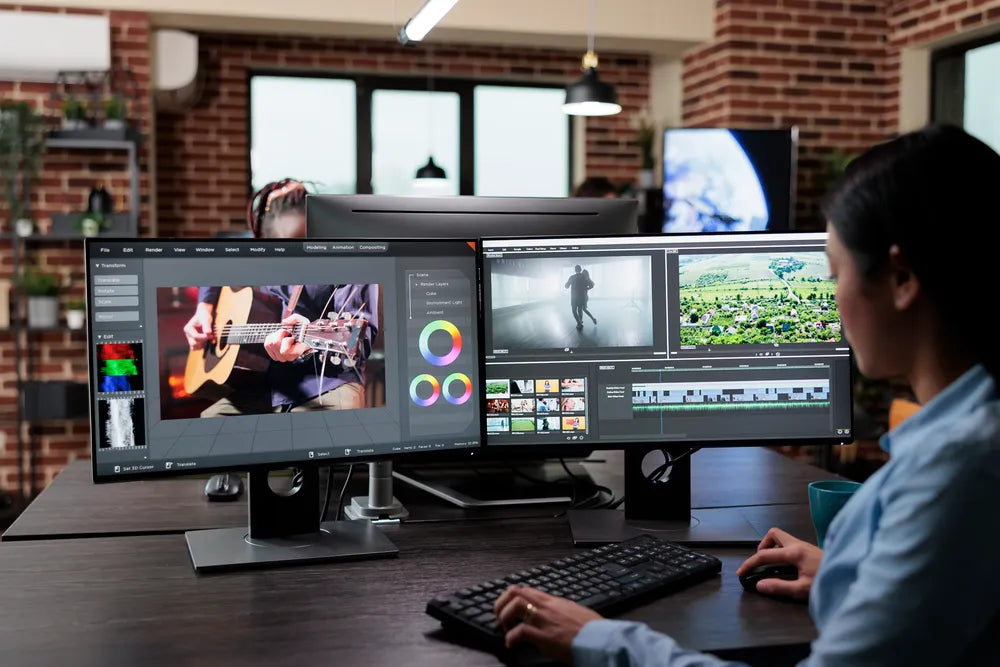
If you are writing code, designing graphics, or working with large spreadsheets, your monitor setup plays a significant role in how efficiently and comfortably you work. The right layout can reduce unnecessary screen switching, improve posture, and make better use of your desk space. On the other hand, a poorly planned workstation can lead to clutter, neck strain, and reduced productivity.
At Guilds, we know that every workspace is different. A software developer has different needs from a designer or financial analyst, so choosing the right monitor stand, monitor arm, or desk monitor stand starts with understanding your daily workflow. This article explores practical monitor layouts and considerations to help you create a workspace that works for you.
Key Takeaways
-
The best monitor setup depends on your workflow, with coding, design, and spreadsheet work each benefiting from different screen layouts.
-
Choosing between a monitor stand and a monitor arm affects ergonomics, desk space, and overall flexibility.
-
Proper monitor positioning helps reduce neck strain, eye fatigue, and unnecessary movement during long working hours.
-
Desk size, monitor size, and future upgrade plans should all be considered before selecting a workspace layout.
-
A well-organised monitor setup improves productivity while creating a cleaner and more comfortable working environment.
Why Your Monitor Setup Affects Productivity
Many people invest in faster computers or larger monitors but overlook how the arrangement of those screens affects their daily work. For example, a programmer may need documentation open alongside a code editor, while a designer often switches between editing software and reference materials. Someone working extensively with spreadsheets may need multiple worksheets visible at the same time.
A thoughtful monitor setup helps reduce unnecessary movement, keeps important information within view, and creates a more organised workspace. The National University of Singapore notes that an ergonomic workstation, including proper monitor positioning, can help prevent neck, shoulder, and back discomfort associated with prolonged computer use.
A well-planned monitor setup can help you:
-
Reduce constant switching between windows: Keeping multiple applications visible at the same time reduces the need to minimise and reopen windows, helping you work more efficiently.
-
Maintain a healthier sitting posture: Positioning your monitor correctly encourages a neutral neck and back position, making it more comfortable to work for extended periods.
-
Keep important applications visible at the same time: Viewing documents, emails, spreadsheets, or reference materials side by side makes multitasking easier and reduces interruptions to your workflow.
-
Improve concentration by organising your workspace: A clean and well-arranged monitor setup minimises visual distractions, allowing you to focus more effectively on the task at hand.
-
Maximise available desk space: Using the right monitor stand or monitor arm frees up valuable workspace for accessories, documents, and other everyday essentials.
Small adjustments to your monitor layout can make repetitive tasks feel more efficient while creating a more comfortable and organised workspace.
Choosing the Right Monitor Layout for Your Work
There is no single monitor setup that suits everyone. The ideal layout depends on the type of work you perform, the size of your desk, and how often you multitask.
Single Monitor Setup
A single monitor remains the preferred choice for many home offices and compact workspaces.
Modern 27-inch or 32-inch displays provide enough screen space for general office work, online meetings, writing, and light creative tasks without requiring additional equipment.
This layout works well for:
-
Students
-
Administrative professionals
-
Remote workers
-
General office tasks
-
Small home offices
A desk monitor stand can further improve this setup by raising the display to eye level while creating storage underneath for a keyboard or notebook.
Dual Monitor Setup

Dual monitors allow two full-sized applications to remain open simultaneously, reducing the need to switch between windows throughout the day.
Many professionals find this arrangement improves workflow because each screen serves a dedicated purpose.
For example:
-
One monitor displays your primary work.
-
The second monitor shows reference documents, emails, chat applications, or research.
Dual monitors are particularly useful for multitasking and managing information across several applications.
Ultrawide Monitor Setup
An ultrawide monitor combines the advantages of multiple windows on a single display.
Rather than separating work across two monitors, users can arrange applications side by side on one continuous screen.
This setup is popular among:
-
Video editors
-
Designers
-
Engineers
-
Financial professionals
-
Content creators
An ultrawide display also eliminates the bezel between two monitors, providing a seamless viewing experience.
Best Monitor Setup for Coding

Software developers spend much of the day reading code, documentation, debugging applications, and testing software. An efficient monitor layout helps minimise unnecessary navigation while keeping essential tools accessible.
Many developers prefer dual monitors because they allow different tasks to remain visible simultaneously.
A common arrangement includes:
-
Primary monitor for the code editor or integrated development environment (IDE)
-
Secondary monitor for documentation, browser testing, terminal windows, or communication tools
Some programmers also rotate one display into portrait orientation, making it easier to view long sections of code without excessive scrolling.
Using a monitor arm offers additional flexibility by allowing developers to quickly reposition the display depending on the task at hand.
Best Monitor Setup for Graphic Design and Creative Work
Creative professionals often work with detailed visuals, making screen quality and layout just as important as processing power.
Unlike coding, design work usually benefits from keeping the primary display directly in front while placing supporting applications nearby.
A practical setup might include:
-
Main monitor for editing software.
-
Secondary monitor for tool panels, client feedback, or reference images.
Large displays also require stable support. A sturdy monitor stand or desk monitor stand helps position the screen comfortably while providing additional workspace underneath for drawing tablets, sketchbooks, or accessories.
Colour accuracy, viewing angles, and consistent monitor positioning all contribute to a smoother editing workflow.
Best Monitor Setup for Excel and Data Analysis
Spreadsheet users often manage large volumes of information across multiple files. Constantly switching between worksheets or overlapping windows slows productivity and increases the risk of errors.
A dual-monitor setup allows one spreadsheet to remain visible while another is used for comparison, data entry, or reporting.
Many analysts also benefit from:
-
Portrait-oriented monitors for viewing long spreadsheets.
-
Large displays that show more rows and columns simultaneously.
-
Secondary screens for dashboards or presentation materials.
Positioning the monitors at equal heights helps reduce unnecessary neck movement during long periods of data analysis.
Monitor Stand vs Monitor Arm: Which Is Better?
Both accessories improve ergonomics, but they offer different advantages depending on your workspace.
|
Feature |
Monitor Stand |
Monitor Arm |
|
Flexibility |
Fixed or limited height adjustment |
Wide range of height, tilt, and rotation adjustments |
|
Desk Space |
Creates useful storage underneath the monitor |
Frees almost the entire desk surface |
|
Ergonomics |
Raises monitor to a comfortable height |
Allows precise positioning for different users |
|
Installation |
Ready to use immediately |
Requires desk clamp or grommet mount |
|
Cable Management |
Basic organisation |
Usually includes integrated cable routing |
|
Best For |
Compact desks, students, home offices |
Professionals, multi-monitor setups, standing desks |
Both options can significantly improve your workstation. The right choice depends on your available desk space, workflow, and how frequently you adjust your monitor position.
How to Choose the Right Monitor Setup for Your Desk
Before purchasing additional monitors or accessories, evaluate the space you already have.
Consider the following questions:
-
How much desk width is available? Measure your desk to ensure there is enough room for your monitor, keyboard, mouse, and other essentials without making the workspace feel cramped.
-
Will you need room for notebooks or paperwork? If you regularly write notes or review printed documents, leave enough clear desk space to work comfortably alongside your monitor.
-
Do you regularly switch between sitting and standing? If you use a height-adjustable desk, choose a monitor setup that can be easily repositioned to maintain a comfortable viewing height in both positions.
-
Is your monitor compatible with a VESA mount? Confirming VESA compatible monitors allows you to use monitor arms or monitor stands that provide greater flexibility and ergonomic adjustments.
-
Will your setup likely expand in the future? Consider if you may add a second monitor, upgrade to a larger display, or introduce new accessories so your setup can continue to meet your needs.
Planning your workspace before buying equipment helps you avoid overcrowding your desk while ensuring every component works together effectively.
How to Build an Ergonomic Monitor Setup
Choosing the right monitor layout is only part of creating a productive workspace. Proper positioning of your monitors, keyboard, and chair helps reduce fatigue and makes it easier to stay comfortable throughout the day.
Position Your Monitor at the Right Height
The top of your primary monitor should sit at or slightly below eye level. This encourages a neutral neck position, helping to reduce strain during long work sessions.
If you use a monitor stand or monitor arm, adjust the screen so you can look straight ahead without tilting your head up or down.
For dual-monitor setups, position your primary monitor directly in front of you. If both monitors are used equally, place them side by side with the centre point between the screens aligned with your body.
Maintain a Comfortable Viewing Distance
Your monitor should generally be positioned about an arm's length away. This allows you to read text comfortably without leaning forward or straining your eyes.
The ideal distance depends on your monitor size and resolution, but the goal is to keep everything clearly visible while maintaining a relaxed posture.
Keep Your Keyboard and Mouse Within Easy Reach
Even the best monitor setup can become uncomfortable if your keyboard and mouse are poorly positioned.
For better ergonomics:
-
Keep your elbows close to your body.
-
Position your keyboard so your wrists remain straight.
-
Place your mouse beside the keyboard instead of reaching across the desk.
-
Rest your feet flat on the floor while sitting.
Creating an ergonomic workspace involves ensuring every part of your workstation works together rather than focusing on one accessory alone.
Common Monitor Setup Mistakes
Even high-quality equipment cannot compensate for a poor layout. Many workspace issues result from simple setup mistakes that are easy to avoid.
Some of the most common include:
-
Placing the monitor too low, forcing you to look down throughout the day.
-
Positioning dual monitors too far apart, leading to excessive neck movement.
-
Choosing monitors that are too large for the available desk space.
-
Ignoring cable management, creating unnecessary clutter.
-
Placing monitors directly in front of bright windows, increasing glare.
-
Buying a monitor arm without confirming VESA compatibility.
-
Using a stand that cannot properly support the monitor's weight.
Reviewing your workspace regularly helps identify small adjustments that can improve comfort and efficiency.
Workspace Examples for Different Professionals
Different professions have different workspace requirements. Understanding how others arrange their monitors can provide ideas for improving your own setup.
|
Profession |
Recommended Monitor Setup |
Helpful Accessories |
|
Software Developer |
Dual monitors or one landscape with one portrait display |
Monitor arm, ergonomic keyboard |
|
Graphic Designer |
Large primary monitor with secondary reference display |
Desk monitor stand, colour-calibrated monitor |
|
Accountant or Financial Analyst |
Dual monitors for spreadsheets and reports |
Adjustable monitor stand, document holder |
|
Content Writer |
Single large monitor or dual monitors for research and writing |
Monitor stand, laptop stand |
|
Video Editor |
Ultrawide monitor or dual displays |
Monitor arm with cable management |
|
Student |
Single monitor with laptop |
Desk monitor stand for additional storage |
Rather than copying someone else's workstation, use these examples as inspiration to create a setup that supports your own workflow.
Choosing Between a Monitor Stand and a Monitor Arm
If you're deciding between a monitor stand and a monitor arm, think about how often you adjust your screen and how much desk space you have available.
A monitor stand is often the better option if you:
-
Prefer a straightforward setup.
-
Want additional storage beneath your monitor.
-
Have a smaller workspace.
-
Rarely adjust your screen position.
A monitor arm may be the better choice if you:
-
Frequently change between sitting and standing.
-
Need maximum flexibility for positioning your monitor.
-
Use multiple monitors.
-
Want to free up as much desk space as possible.
Both options improve ergonomics, so the decision comes down to your working habits and workspace requirements.
Monitor Setup Checklist Before You Upgrade
Before purchasing new equipment, review your current workspace using this simple checklist.
|
Question |
Why It Matters |
|
Is your monitor positioned at eye level? |
Supports better posture and reduces neck strain. |
|
Do you have enough desk space for your preferred layout? |
Prevents overcrowding and improves organisation. |
|
Will you benefit from one monitor or two? |
Matches your equipment to your daily workflow. |
|
Does your monitor support VESA mounting? |
Determines whether a monitor arm is compatible. |
|
Would a monitor stand create additional storage? |
Helps maximise usable desk space. |
|
Do you expect to upgrade your equipment later? |
Choosing adaptable accessories supports future changes. |
Taking the time to assess your workspace before upgrading helps you invest in equipment that continues to meet your needs as your work evolves.
Create a Monitor Setup That Works for Your Workflow
The best monitor setup is one that supports the way you work rather than following a one-size-fits-all approach. A programmer may benefit from dual monitors with one screen in portrait mode, while a designer may prefer a large colour-accurate display supported by a sturdy desk monitor stand. Spreadsheet users often achieve greater efficiency with multiple displays that keep data visible side by side.
At Guilds, we believe every workspace should balance comfort, functionality, and thoughtful design. If you are looking for a reliable monitor stand, a flexible monitor arm, or workspace accessories, our range is designed to support different working styles and desk layouts. By choosing solutions that match your workflow, you can build a workstation that remains comfortable and productive for years to come.
Frequently Asked Questions
Is a dual-monitor setup always better than a single monitor?
Not necessarily. Dual monitors are helpful for multitasking, but a single large monitor may be sufficient for writing, studying, or general office work. The best choice depends on your workflow and available desk space.
Can I combine a monitor stand with a monitor arm?
Yes. Some people use a monitor arm for their primary display while placing a laptop or secondary monitor on a monitor stand. This combination provides flexibility while keeping the desk organised.
Should both monitors be the same size?
Using two monitors of the same size creates a more balanced viewing experience, but it is not essential. Many professionals successfully combine different screen sizes depending on their work requirements.
How much desk space do I need for a dual monitor setup?
The required space depends on the monitor size and accessories you use. Measuring your desk before purchasing additional equipment helps ensure the monitors fit comfortably without restricting your working area.
Is a monitor arm suitable for heavy monitors?
Many monitor arms are designed to support larger displays, but it is important to check the recommended weight capacity before purchasing. Choosing a monitor arm that matches your monitor's specifications helps ensure stability and safe operation.
How often should I review my monitor setup?
It is a good idea to reassess your workstation whenever you change your desk, chair, monitor, or daily workflow. Small adjustments can improve comfort and help your workspace continue to support your productivity over time.
7 Signs You Need to Upgrade to a VESA Monitor Arm for Your Desk
Customisable Monitor Stand Ideas for Minimalist and Gaming Desk Setups